Mac setup
Macs keep apps in their lane until you say otherwise — which is a good thing. Hubbub helps you notice when you've wandered off task, so its setup asks for three quick approvals. It takes a couple of minutes, Hubbub explains each one before your Mac asks, and it spots on its own when you've said yes.
No restart for any of them. On Windows there's nothing to approve at all.
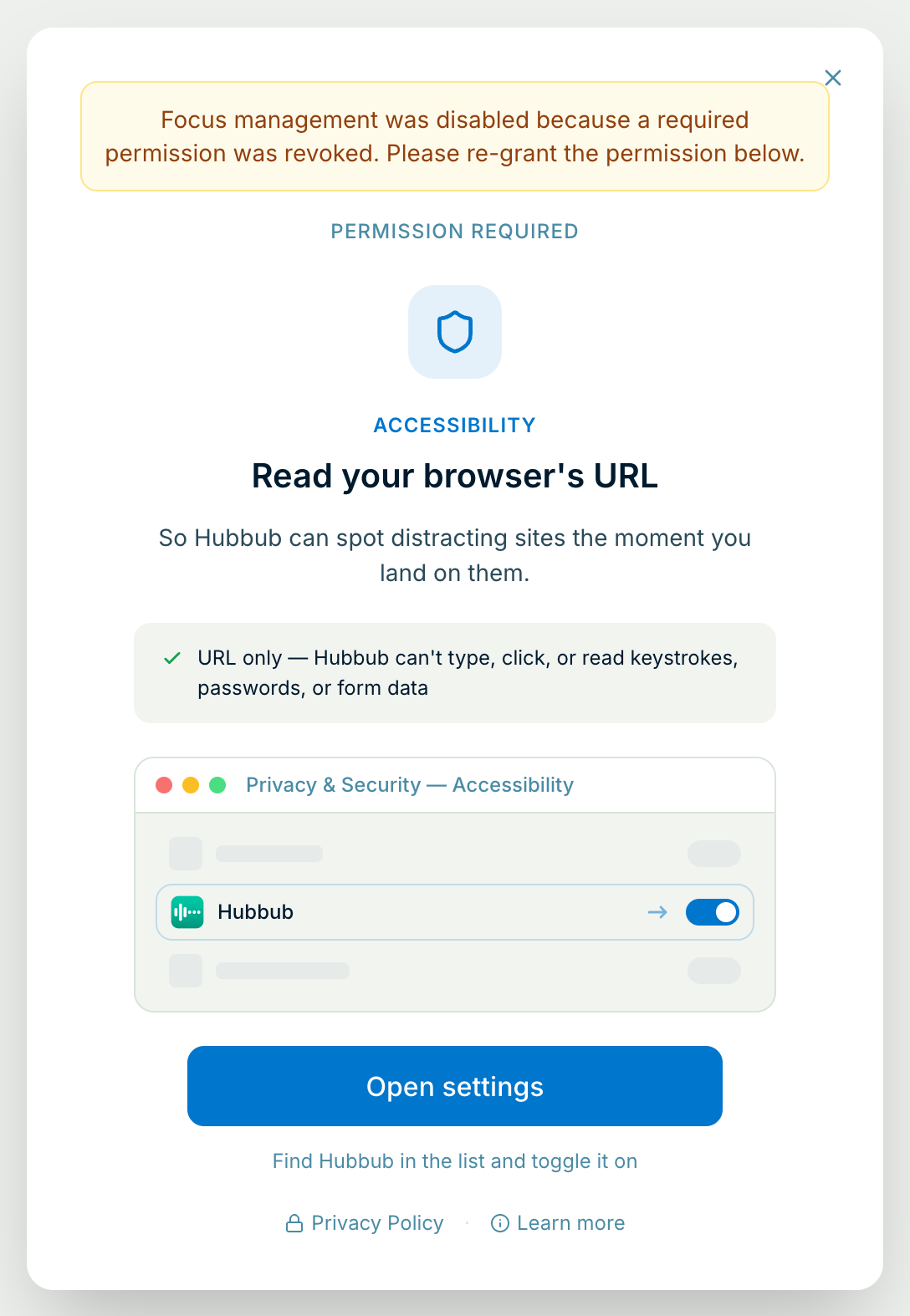
Right after you sign in for the first time, Hubbub shows what it can do and then asks for each approval on its own screen. Every screen says what it's for and what Hubbub won't do with it, shows the System Settings switch it's about to turn on, and notices by itself when you've done it — you never have to come back and click “I did it”.
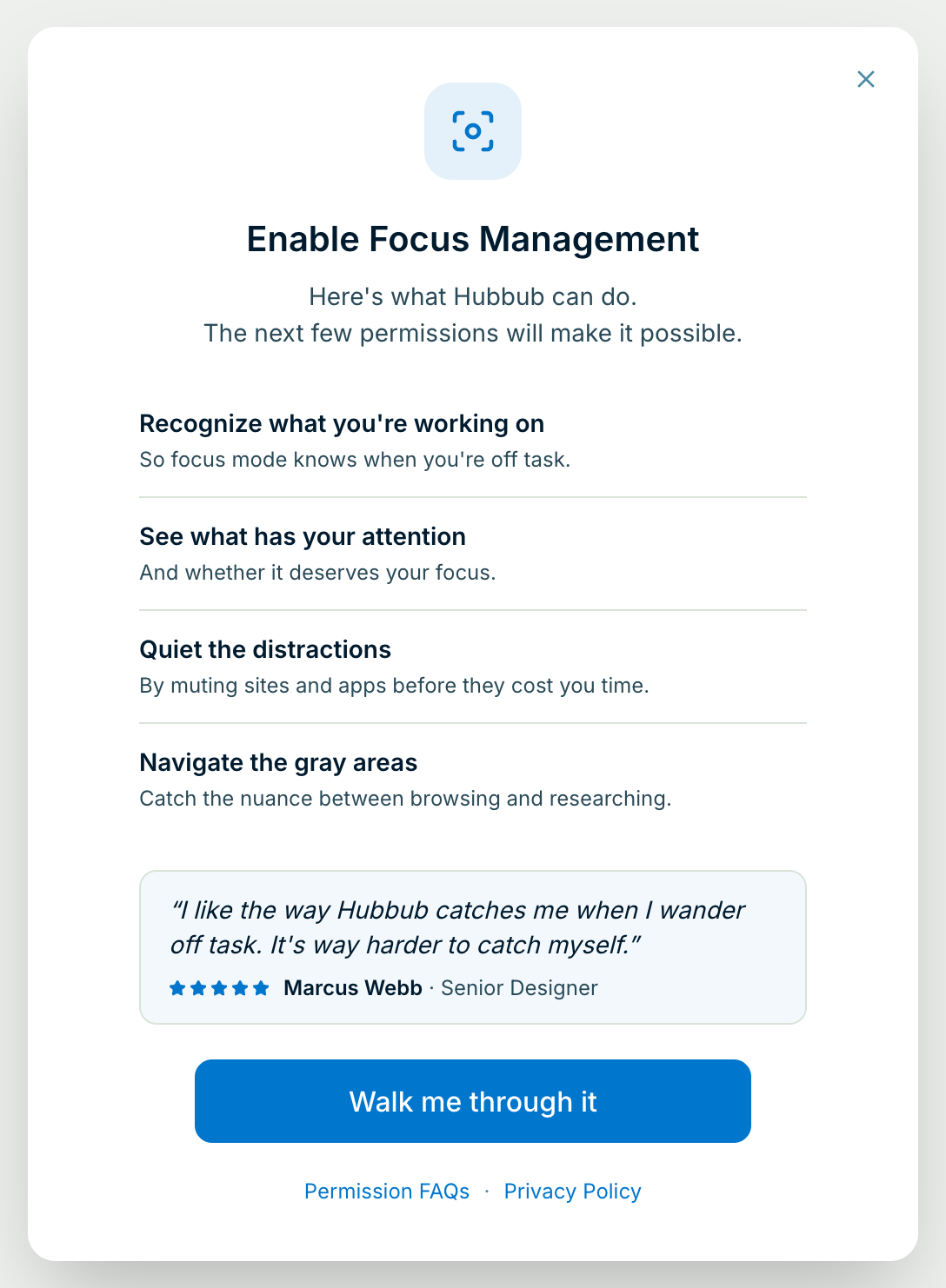
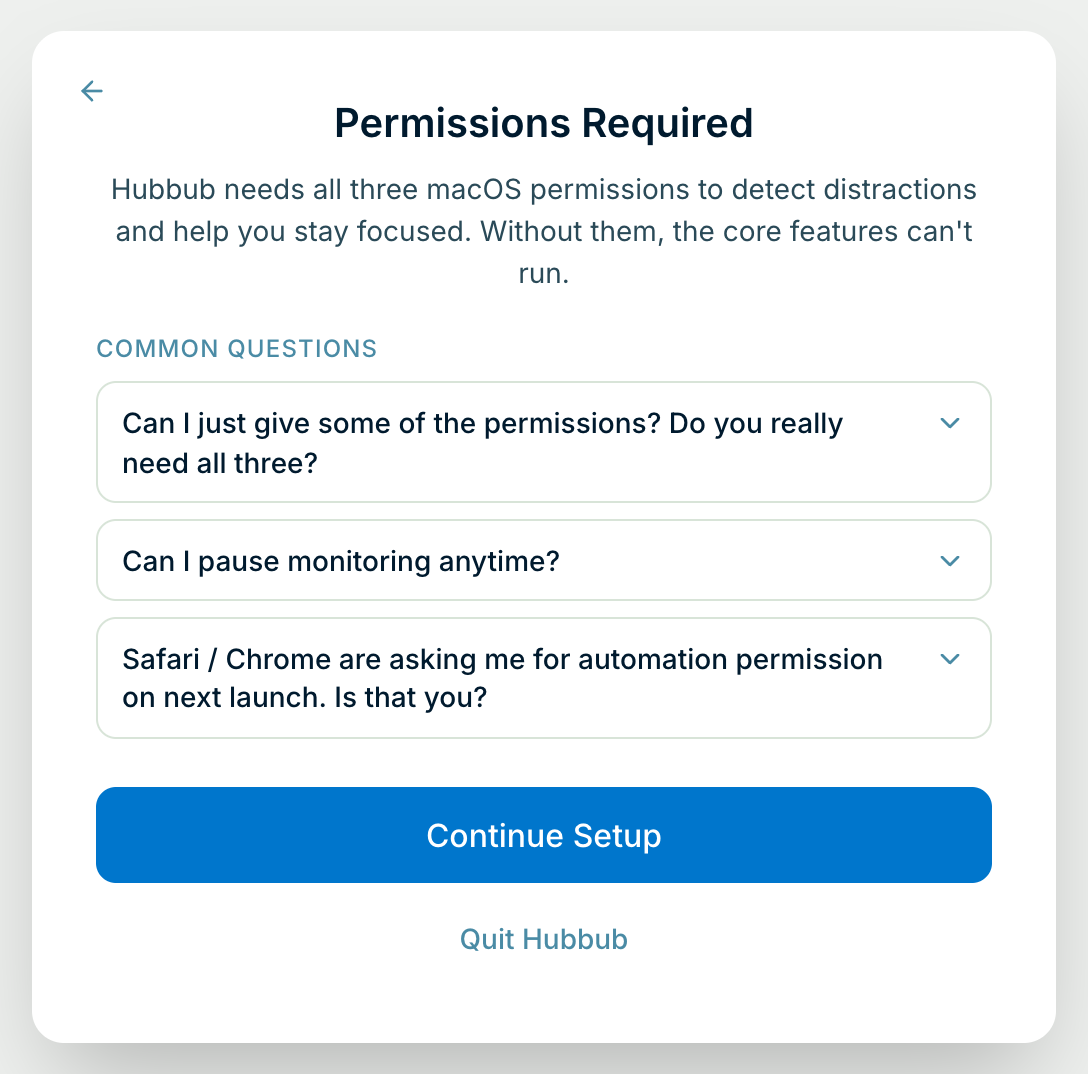
The first two approvals are what Hubbub runs on, so closing setup offers two choices: carry on where you left off, or quit for now. Quitting is fine — setup picks up at the same place the next time you open Hubbub.
Hubbub notices — straight away if it's running, otherwise the next time it opens. It pauses focus help rather than guess, and setup comes back on just that one step, with a note saying why. One click puts it back.
A normal setup never asks for these. If you turn on Smart Screen Analysis, your Mac asks once for screen access. And on a child's Mac without an administrator account, Hubbub offers background updates so a parent doesn't have to type a password for every update.
Still installing? Start with the Mac install guide — Hubbub has to be in your Applications folder before any of this works properly. For what happens to your data, see the privacy policy. Stuck? Email support@77sparx.com.
