Mac setup

Seeing your open apps

The first thing Hubbub's setup asks for, and the simplest: one Allow button. macOS calls it System Automation. It lets Hubbub see which apps you have open — not what's in them.

In macOS it's called
Automation → Hubbub → System Events
Where to find it
System Settings → Privacy & Security → Automation
Required?
Yes — Hubbub's focus features can't run without it.
Restart needed?
No. Hubbub notices within a couple of seconds.

What Hubbub uses it for

  • Seeing which apps are open, and whether they have a window on screen.
  • Knowing what you've switched to, so it can tell work from a detour.
  • Closing a distracting app when you've asked Hubbub to.

What it never does with it

  • Reading what's inside your apps — documents, messages, email.
  • Typing, clicking, or reading your keystrokes.
  • Doing anything in another app except checking it's open and, when you've chosen to block it, closing it.

Turning it on

Step 1: Click Allow on Hubbub's System Automation screen

It's the first screen after Walk me through it in Hubbub's setup. The picture on it shows the exact System Settings switch this turns on — you won't normally need to go there.
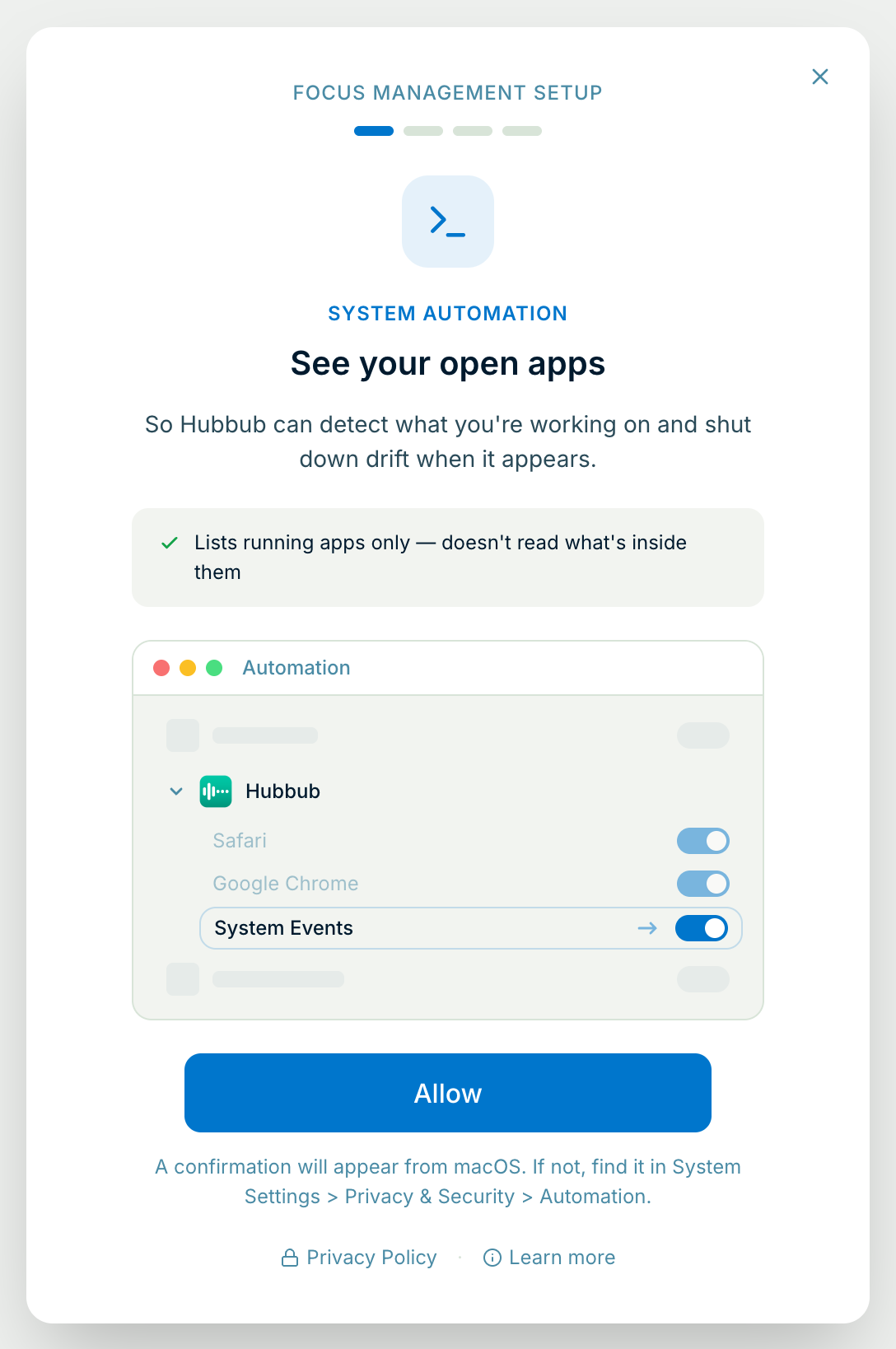
Hubbub's System Automation step: “See your open apps”, a note reading “Lists running apps only — doesn't read what's inside them”, a picture of the Automation settings with System Events switched on under Hubbub, and an Allow button.

Step 2: Click Allow in the macOS box

macOS asks whether Hubbub may control “System Events” — the part of macOS that knows which apps are running. The wording sounds broader than it is: macOS uses the same sentence for every app that asks.
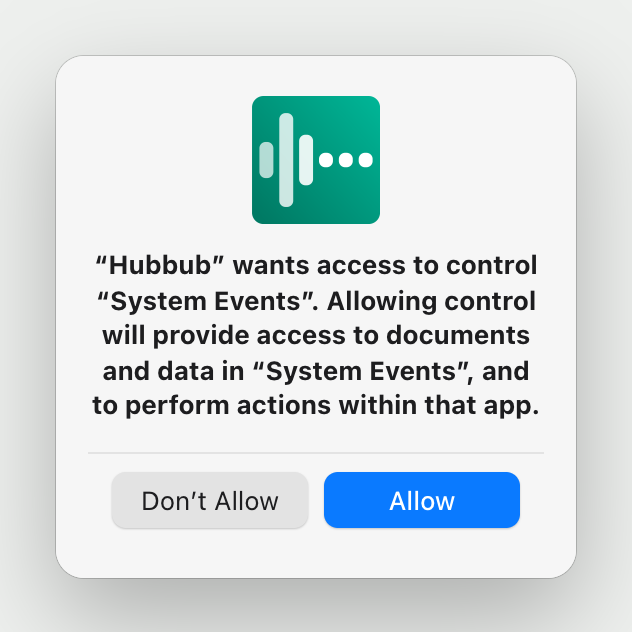
macOS dialog: “Hubbub” wants access to control “System Events”. Allowing control will provide access to documents and data in “System Events”, and to perform actions within that app. Buttons: Don't Allow, Allow.
Illustration of macOS — the wording and layout shift a little between macOS versions, and your list of apps will differ.

Step 3: Hubbub moves on by itself

The screen changes to Access granted within a second or two. Click Continue for the next permission.
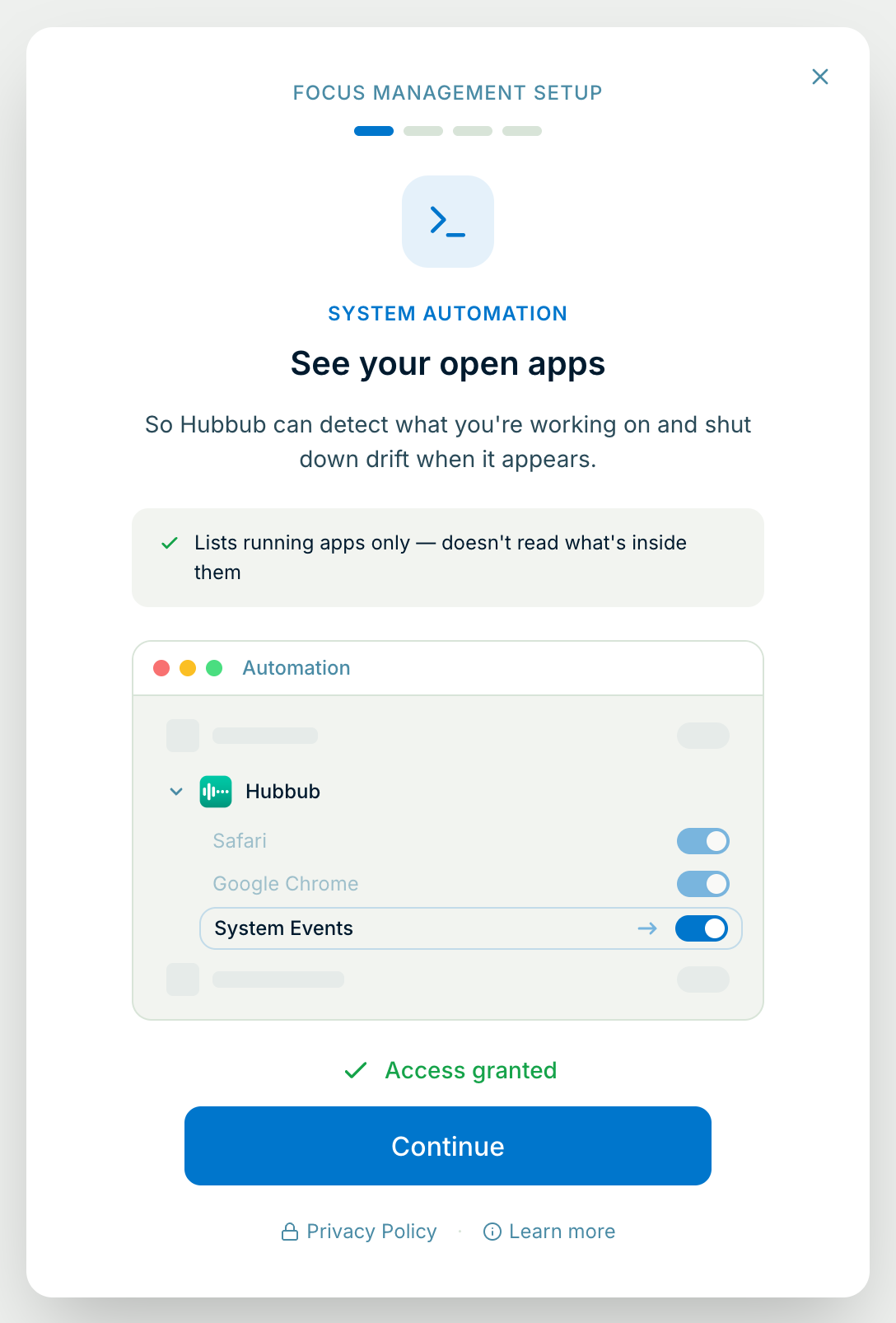
The same System Automation step, now showing a green “Access granted” tick and a Continue button.

No box appeared, or you clicked Don't Allow

macOS shows that box once. If it doesn't appear — because you answered it before, or Hubbub was installed on this Mac before — Hubbub opens System Settings for you instead.

In Privacy & Security → Automation, click the arrow next to Hubbub to expand it and switch on System Events. Back in Hubbub, the step completes on its own and System Settings closes.
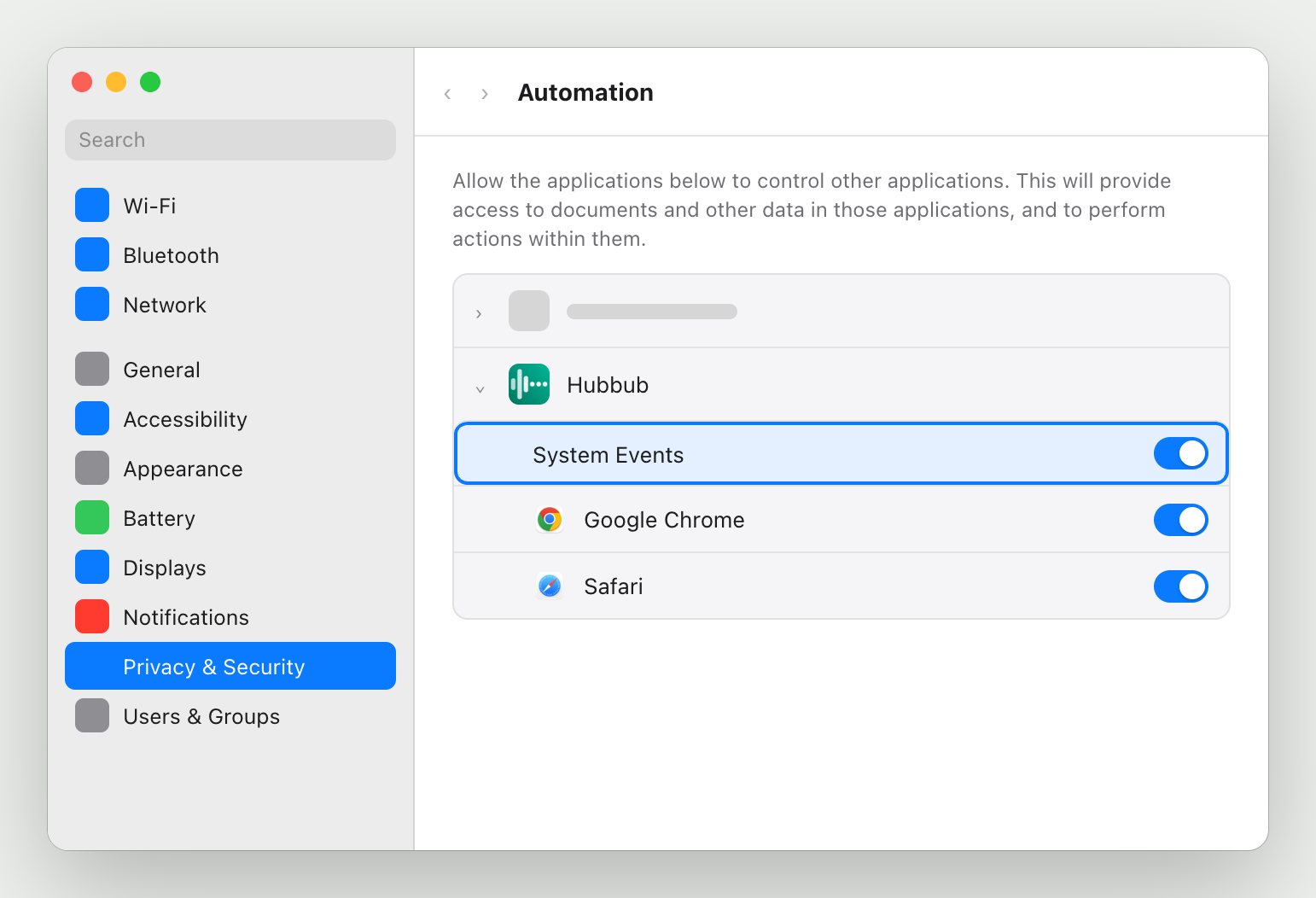
System Settings, Privacy & Security → Automation: Hubbub expanded, with the System Events switch highlighted and on. Other apps are drawn as blank placeholders.

If you switch it off later

Hubbub notices the next time it checks — straight away if it's running, or when it next opens. Focus management switches off, and the setup screen comes back with a note saying a required permission was turned off, so you can turn it on again in one click.

Questions people ask

Why does the macOS box mention “documents and data”?
That's macOS's standard sentence for any app asking to control another one — it doesn't know what the app will actually do. System Events has no documents of yours in it; Hubbub asks it one thing, which apps are running.
Can I skip it?
Not if you want Hubbub to help you stay focused — without it Hubbub can't tell what you're doing. Closing the setup screen offers to continue setup or quit Hubbub; nothing in between.
I see Safari or Google Chrome under Hubbub in Automation too. Is that this?
Those are separate, one per browser — see Connecting your browsers. System Events is the only one this step needs.

The other things Hubbub's setup asks your Mac for are on the Mac setup overview. Stuck, or something on screen doesn't match what's described here? Email support@77sparx.com and we'll walk you through it.