
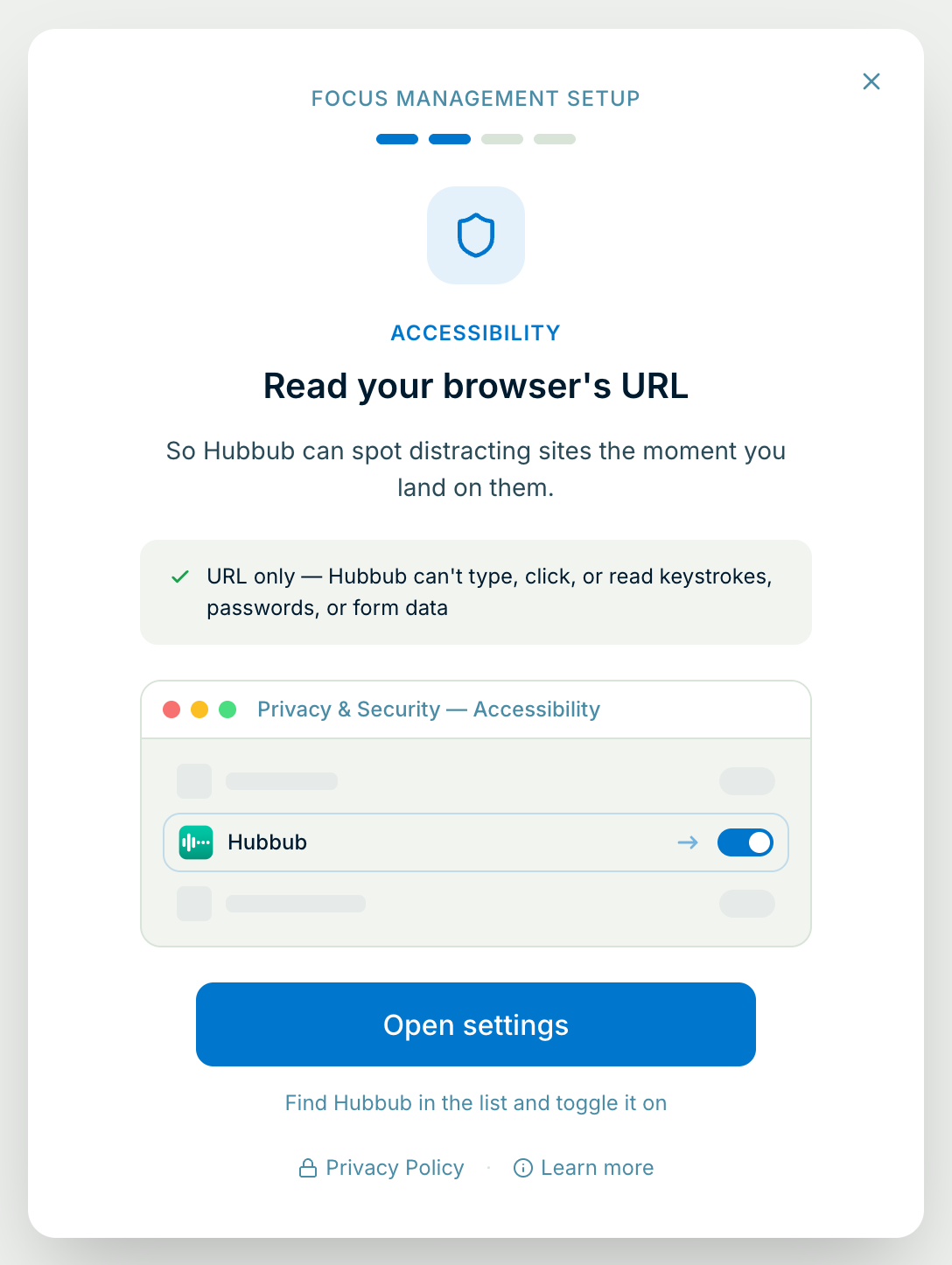
Step 1: Click Open settings on Hubbub's Accessibility screen
It's the screen right after System Automation in Hubbub's setup.
Mac setup
The second thing Hubbub's setup asks for — macOS files it under Accessibility. It lets Hubbub read the address of the page in your browser, so it can spot a distracting site the moment you land on it. Nothing you type.
It's the screen right after System Automation in Hubbub's setup.
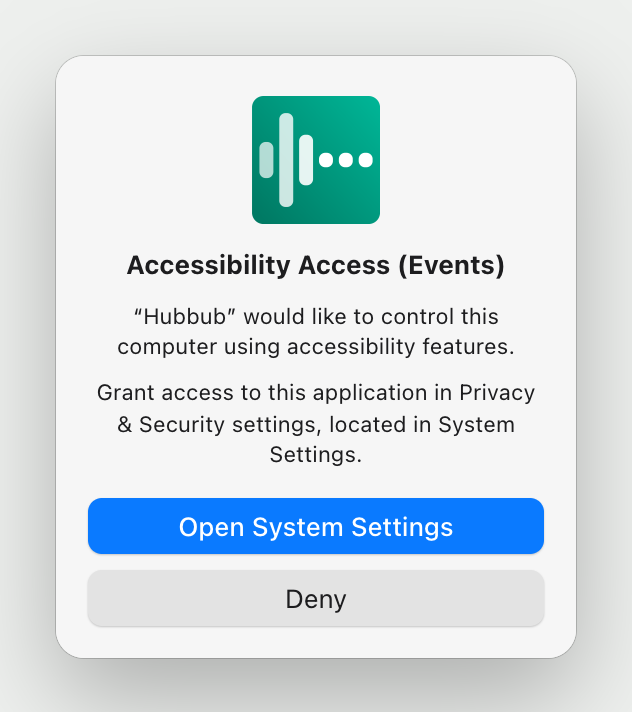
macOS asks first. If you don't see this box, that's fine — Hubbub opens System Settings for you a couple of seconds later.
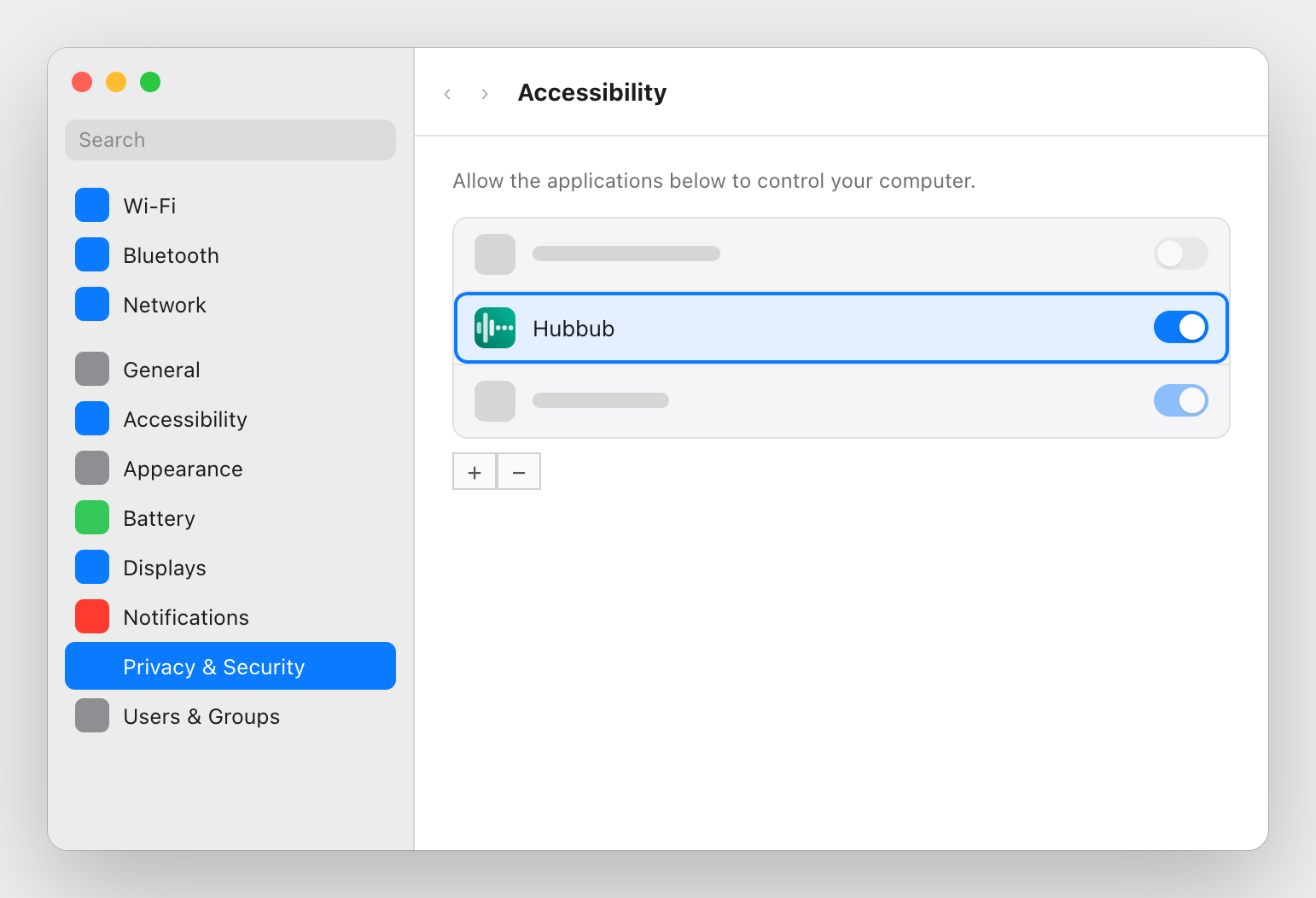
System Settings opens to Privacy & Security → Accessibility. Find Hubbub in the list and turn its switch on. macOS asks for your Mac's password or Touch ID to confirm.
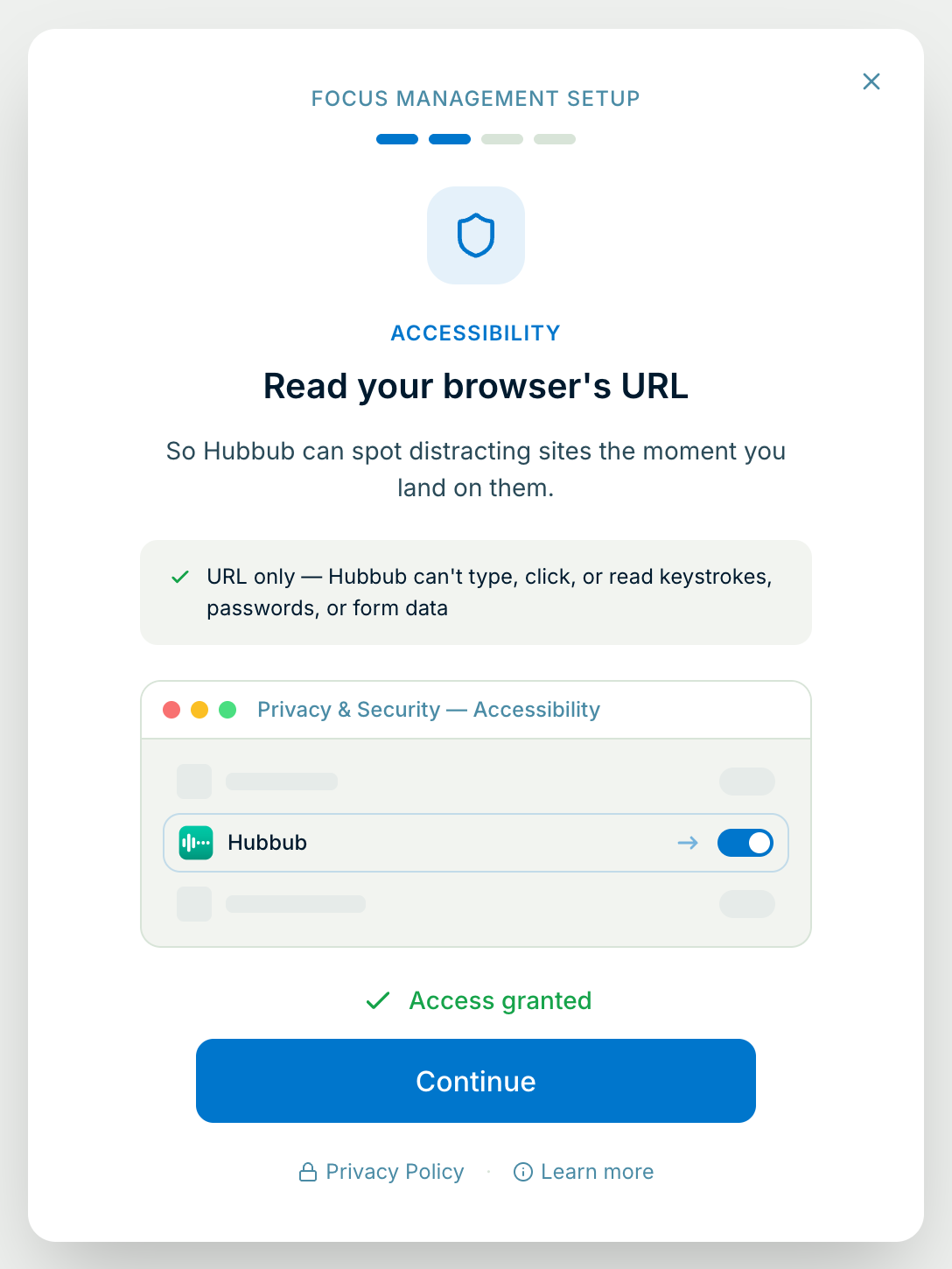
Within a second or two Hubbub sees the switch, closes System Settings and comes back to the front showing Access granted. Click Continue.
Hubbub notices straight away if it's running, or the next time it opens. Focus management switches off and the setup screen comes back on this step, with a note saying a required permission was turned off.
The other things Hubbub's setup asks your Mac for are on the Mac setup overview. Stuck, or something on screen doesn't match what's described here? Email support@77sparx.com and we'll walk you through it.