For parents

Be your kid's focus partner

An accountability partner in Hubbub gets two things: a recap of how the day's focus went, by email, and the final say on whether a blocked site stays unblocked. Setup takes about five minutes on their Mac, plus one click in your inbox.

There's no switch on your side — and that's the point

You can't turn this on. There's no parent account, no way to request access to someone's Hubbub, and nothing you can install on their Mac that would let you. The invite only goes one way: they send it, they choose what you see, and they can end it in one click — at which point you're told it ended.

That isn't a gap we plan to close. A tool a kid can't switch off is one they'll spend the term learning to beat, and lockdown tools lose that race on day one. An arrangement they opted into is one they'll keep. So the ask — “would you put me on this?” — is genuinely the first step, and the setup below is something to do sitting beside them.

What you get out of it

A picture of the day, not a feed of their activity
One email, at a fixed time, with how much of their time was focused, how long was tracked, their streak, tasks finished, and the named apps and sites the time went to. It's enough to ask a better question than “did you do your homework?” — and it's a conversation the next morning, not an alert at 9:14pm.
You hear it when a rule gets loosened
A commitment device the committed person can quietly undo isn't one. Without a partner, anything blocked can be made permanently allowed in two clicks and nobody is told. With one, every unblock is temporary and every unblock emails you.
The permanent yes is yours, and it's the only thing that is
You can't block anything, add a rule, set a schedule, see their rule list, or take back time they've already been given. You answer questions they send. That narrowness is what makes it something a teenager will agree to in the first place.
No app, no account, no login, ever
Your entire side of this is an email address. Nothing to install, nothing to sign into, nothing on your phone — which is also why it survives: the realistic partner is a parent who is not going to keep a dashboard open.

Turning it on, together

Steps 1 to 3 happen on their Mac. Step 4 is yours.

Step 1: Open Hubbub on their Mac and go to Report

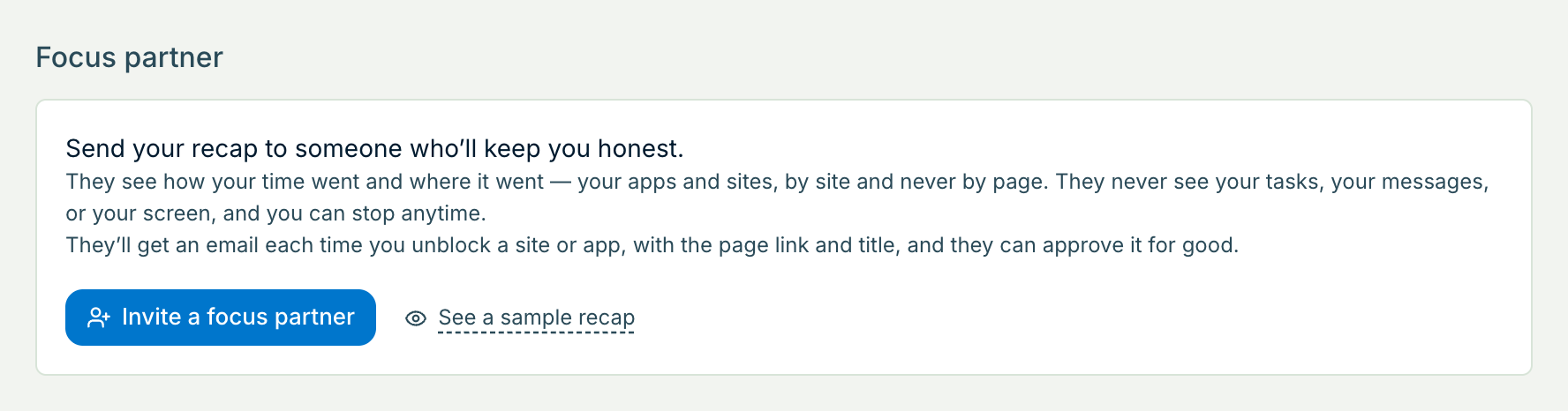
This part happens on the machine Hubbub runs on, in their account — so it's a five-minute job to do sitting next to them, not something to set up on your own. Open the Report tab and scroll to the bottom: the Focus partner section sits under the day's numbers.

The Focus partner section of Hubbub's Report page, explaining what a partner sees, with an “Invite a focus partner” button and a “See a sample recap” link.

Step 2: Press Invite a focus partner and enter your email address

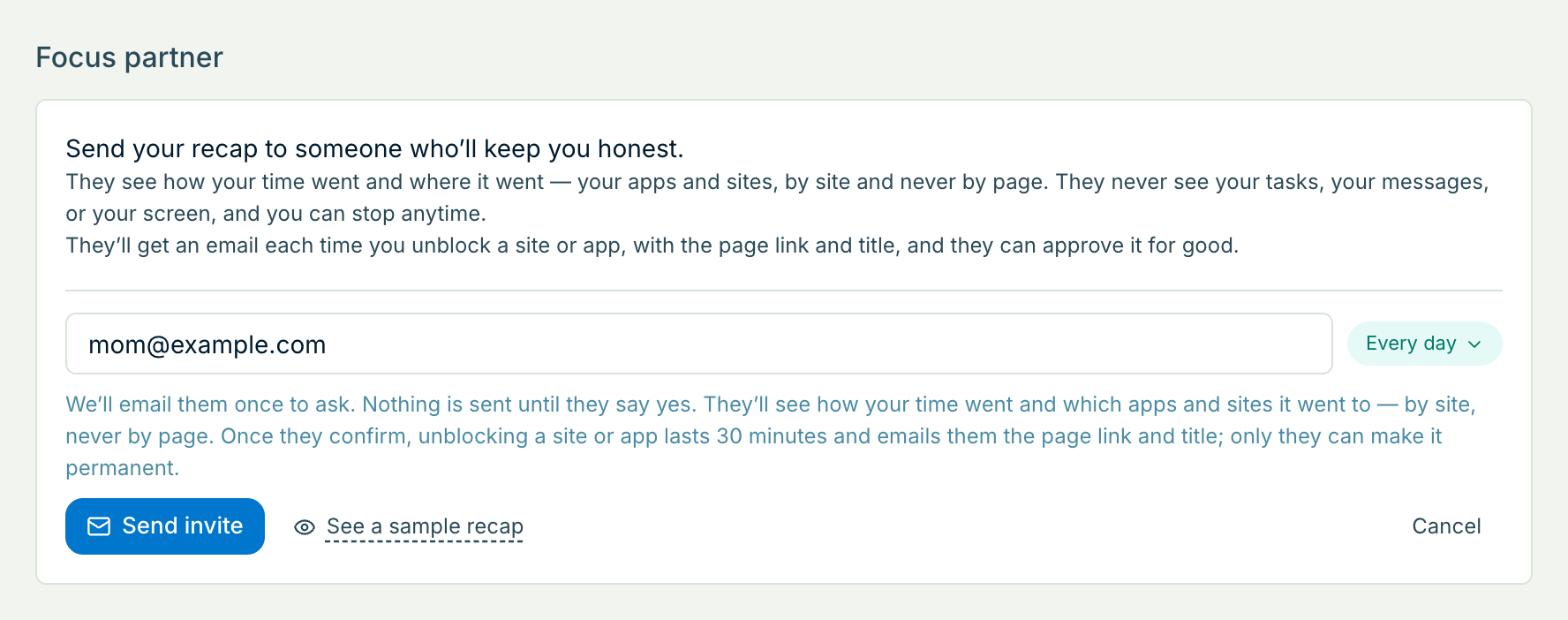
Then pick how often: Every day, or Once a week. Daily is the default and the one that actually works — someone who hears about a rough Tuesday on Tuesday can say something about it, while a weekly summary arrives as a post-mortem.

Open “See a sample recap” before sending. It shows the real email, filled with a made-up day, and it's the honest way to settle what you'll be seeing — including the named apps and sites — before anybody commits to it.

The invite form: an email address typed into the field, a cadence pill reading “Every day”, and a Send invite button, above a note explaining that nothing is sent until the partner confirms.

Step 3: Send the invite

You'll appear in their list straight away, marked “Waiting for them to confirm” in red until you do. Nothing is sent to your address in the meantime — one invite, and silence unless you say yes. They can have up to three partners, so two parents and a coach all fit.

Step 4: Open the email and press “Yes, keep me in the loop”

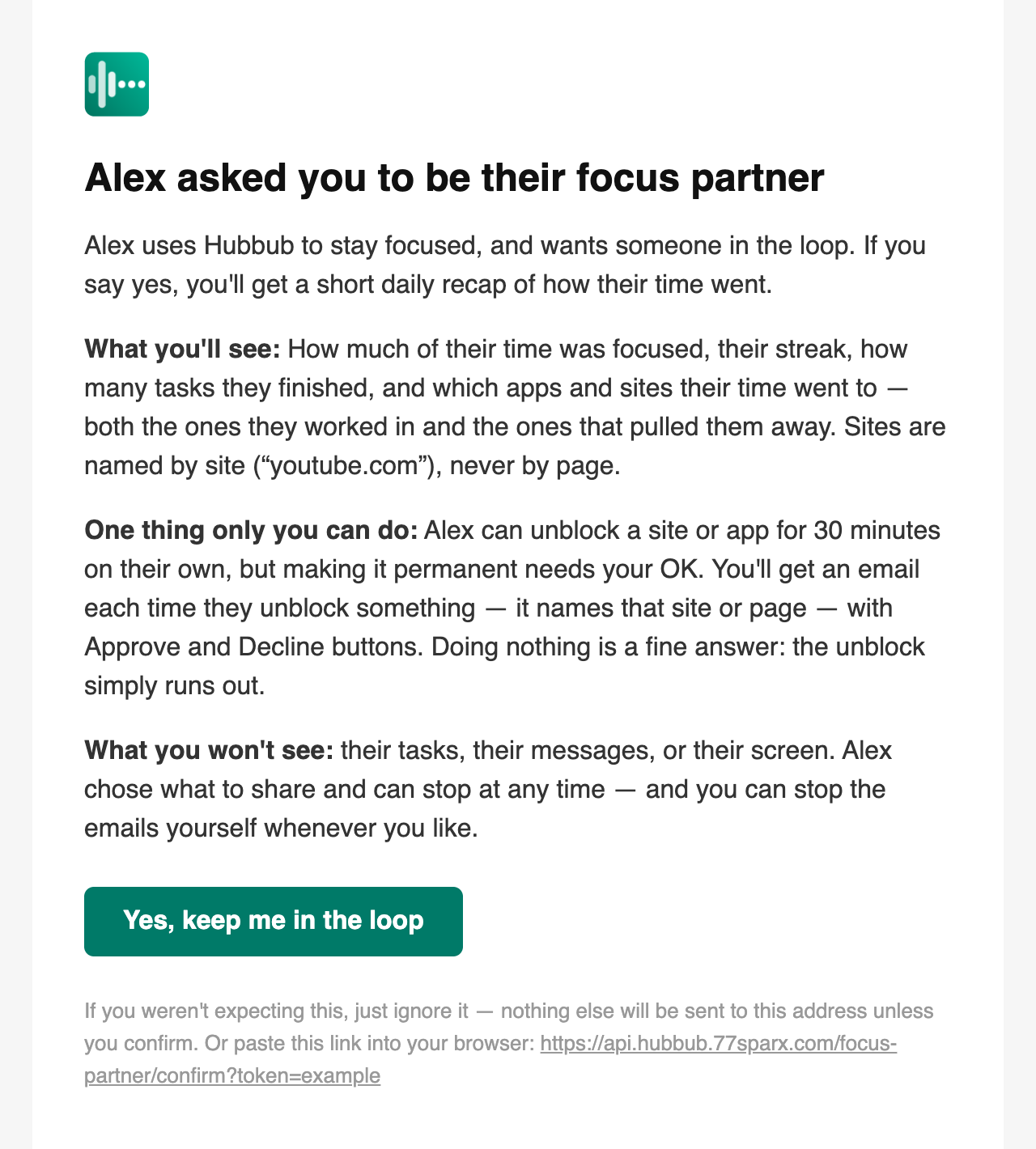
This is your part, and it's the only thing you have to do. The email says who invited you, what you'll see, what you won't, and the one thing only you can do. Nothing arrives at your address until you click — so if it isn't there, check spam before re-sending from their Mac.

The invite email: “Alex asked you to be their focus partner”, with sections headed What you'll see, One thing only you can do, and What you won't see, above a green “Yes, keep me in the loop” button.

Step 5: That's it — the first recap comes that evening

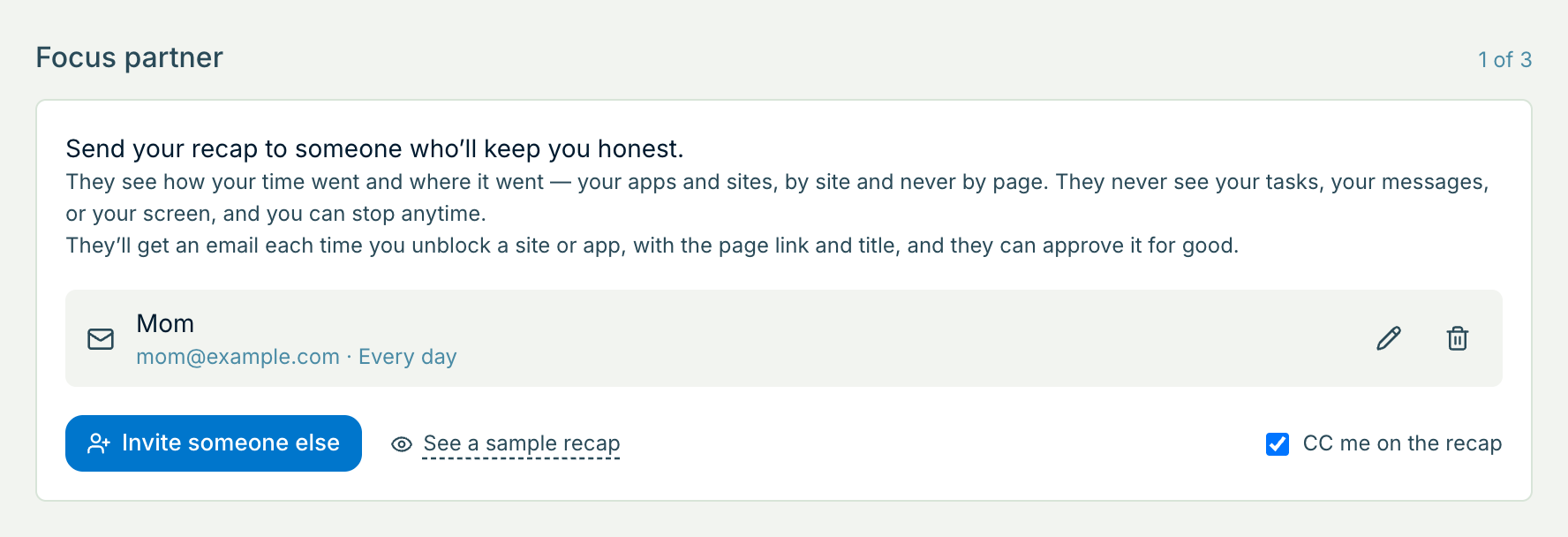
Your row loses the red warning, and recaps start arriving at 8pm their time (weekly ones on the last evening of their week). They get their own copy of the same email by default — the “CC me on the recap” box — so nothing about them goes out that they can't read themselves.

The Focus partner section with one confirmed partner listed as “Mom · mom@example.com · Every day”, with edit and remove buttons, and a checked “CC me on the recap” box.

What actually arrives

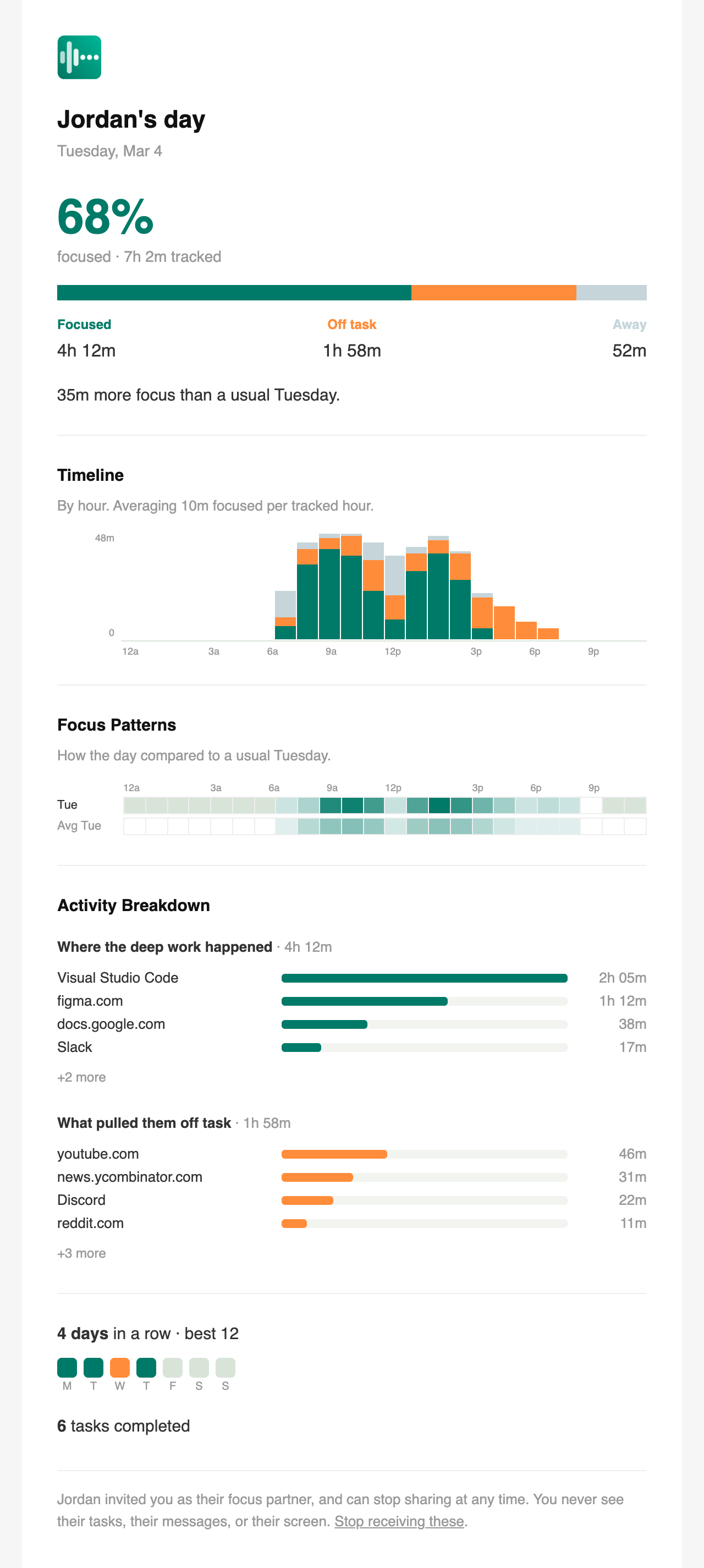
This is a recap in full, with a made-up day in it — the same sample the app shows before anyone presses invite. The percentage is focused time against off-task time; the two lists at the bottom are where the time went, ranked.

A full focus recap email: “Jordan's day”, 68% focused over 7h 2m tracked, a timeline by hour, a Focus Patterns grid comparing the day to a usual Tuesday, and an Activity Breakdown ranking apps and sites for deep work and for time off task.

Where the recap stops

Sites are named by site and never by page: youtube.com can appear, the video they watched can't. It carries no task titles, no notes, no messages and no screenshots, and there is no setting that adds any of them. Anything Hubbub classifies as sensitive — health, banking, dating, adult — is stripped on their Mac before it's ever sent anywhere, so it can't appear in a recap at all. And on a day Hubbub wasn't running, the email says that in as many words rather than reporting a zero — for a few days, after which it stops repeating itself and goes quiet until there's something to report.

How an approval works

This is the half people don't expect, and it's the half that does the work. Everything here starts with them.

Step 1: They hit a block and say it's work

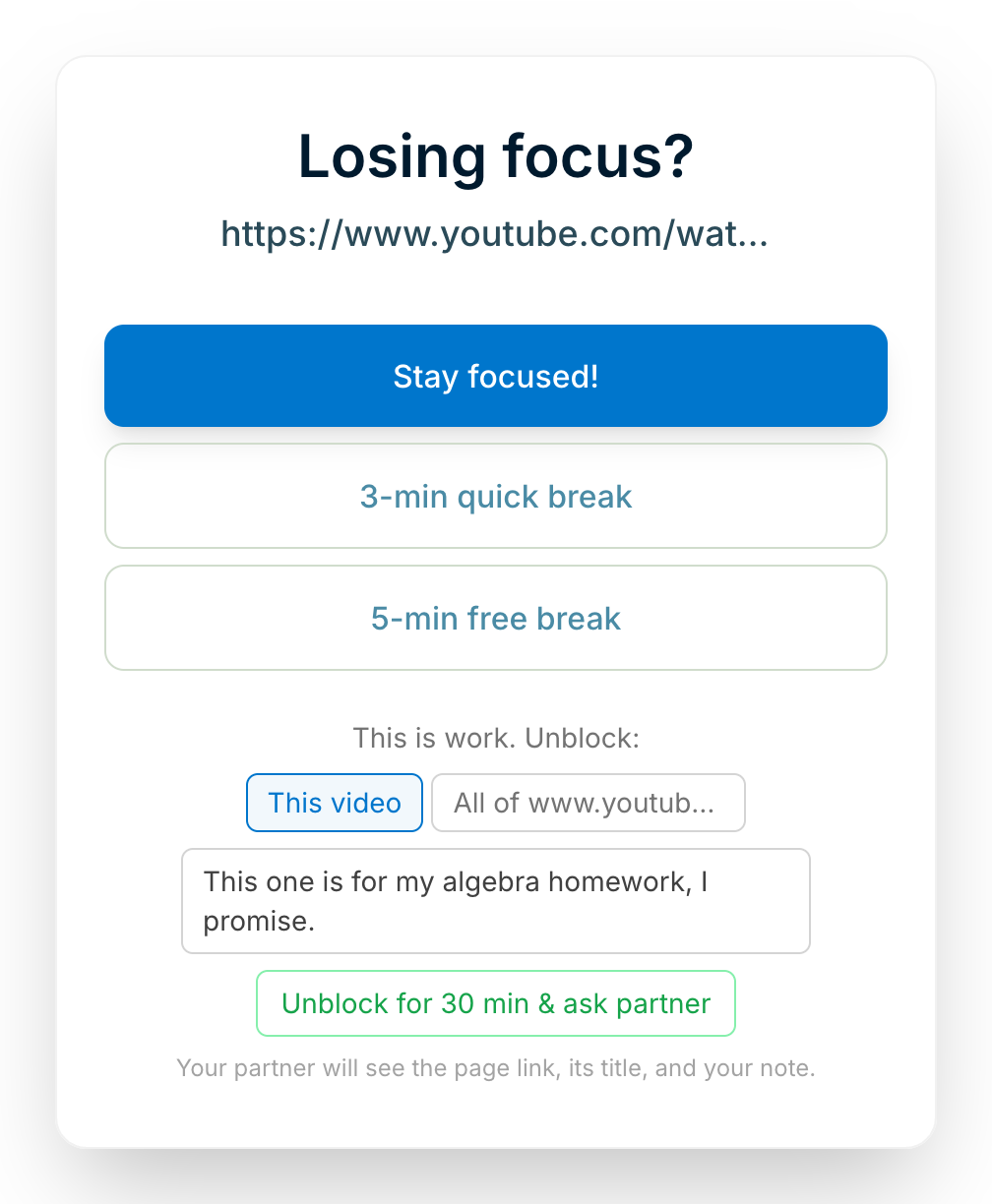
Once you've confirmed, they can't quietly whitelist anything any more. The only unblock they have left is one button — “Unblock for 30 min & ask partner” — which gets them back to work immediately and sends the question to you. They can add a note with it, and the app tells them, before they click, that you'll see the page link, its title, and whatever they wrote.

Hubbub's block screen on their Mac: “Losing focus?” above a youtube.com link, with Stay focused! and two break buttons, and underneath “This is work. Unblock:” — a “This video” / “All of www.youtube.com” choice, a note reading “This one is for my algebra homework, I promise.”, a single “Unblock for 30 min & ask partner” button, and a line saying the partner will see the page link, its title, and the note.

Step 2: You get an email naming what it was

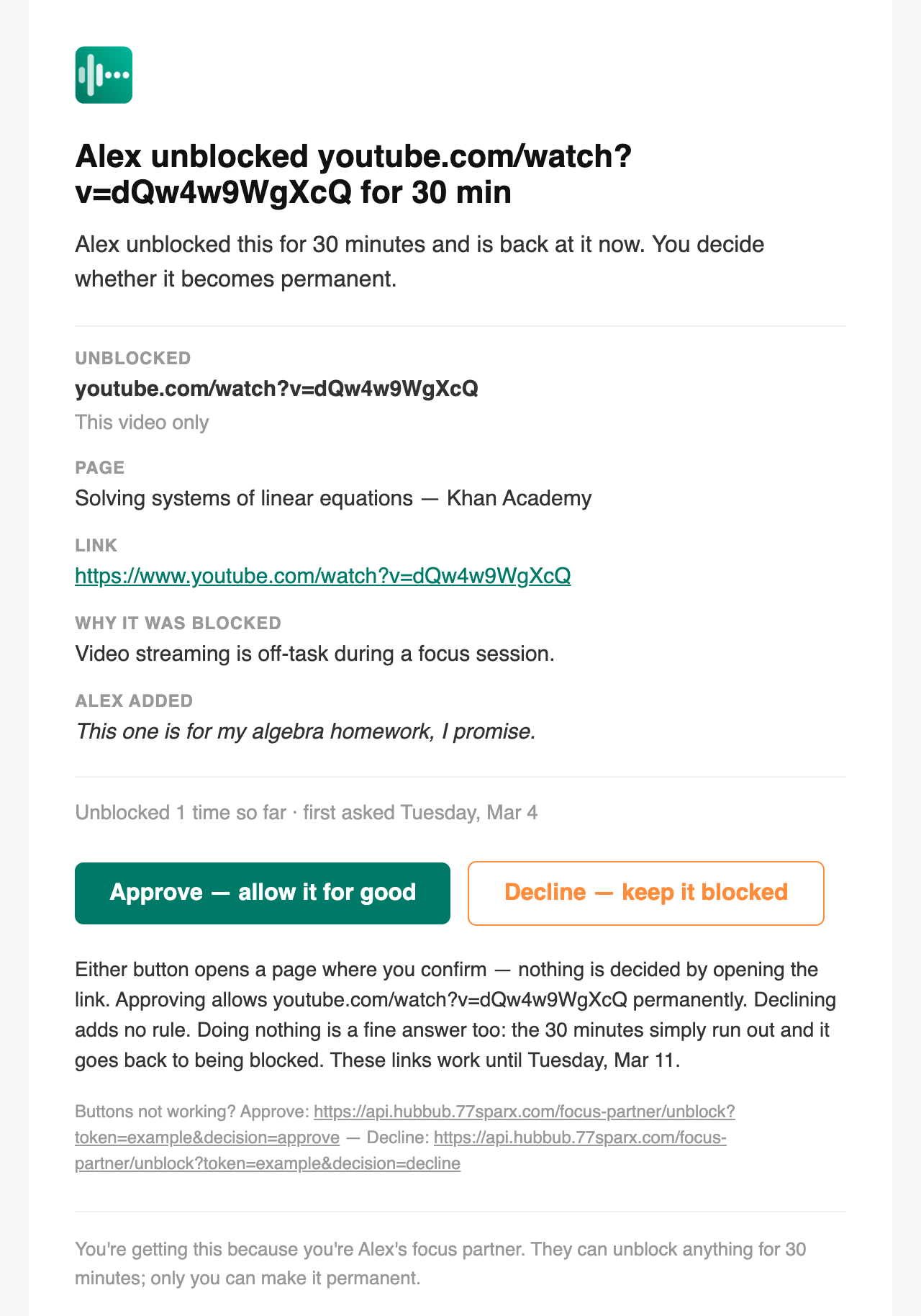
The site or page, its title, why Hubbub blocked it, their note, and how many times they've unblocked it. This is the one email that names a page rather than just a site — because you can't sensibly answer “should this be allowed for good?” without knowing what “this” is, and because they chose to send each one.

The unblock request email: “Alex unblocked youtube.com/watch?v=dQw4w9WgXcQ for 30 min”, listing the page, link, why it was blocked and Alex's note, above Approve and Decline buttons.

Step 3: Approve or Decline opens a page — you confirm there

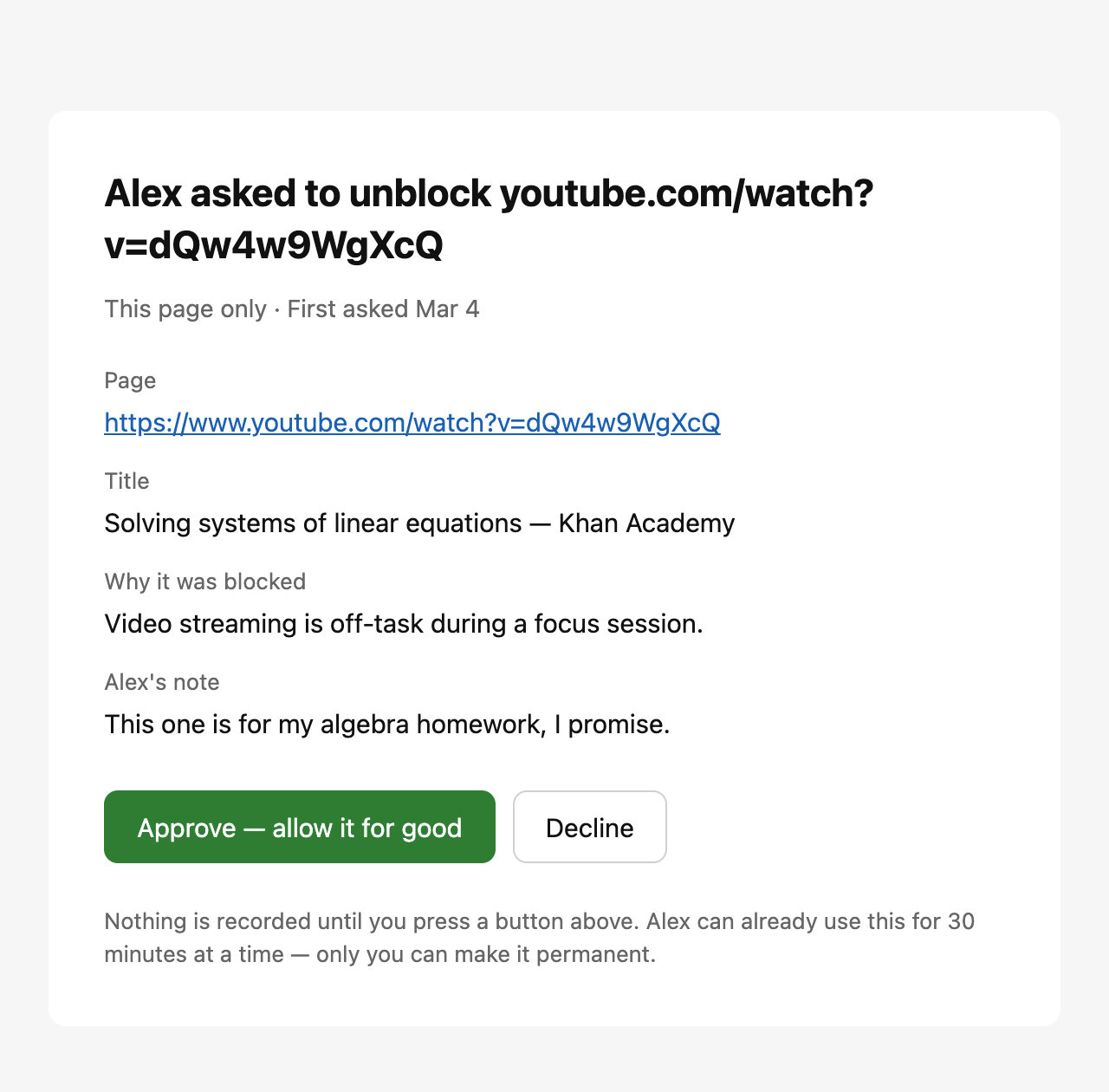
Neither button in the email decides anything on its own. It opens a page showing the same details with your choice preselected, and the decision is only recorded when you press the button there. That's deliberate: corporate mail scanners click every link in an incoming email, and a link that recorded an answer would approve requests nobody had read.

The review page: “Alex asked to unblock youtube.com/watch?v=dQw4w9WgXcQ”, the page details, and Approve and Decline buttons, with a note that nothing is recorded until one is pressed.

Step 4: Three answers, and all of them are fine

Approve makes it permanent. Decline adds no rule at all — their 30 minutes still run out on their own, so you haven't cut anything short. Doing nothing lands in the same place as declining, quietly: the time expires and the site goes back to being blocked. They're emailed your answer either way, so they aren't left guessing.

The links stay live for 7 days. If they unblock the same thing again, it reuses the same request rather than opening a second one — so a pile-up of emails about one site is still one question, and answering any of them answers all of them.

What this isn't

  • It isn't a lock. They can remove you, or stop using Hubbub, and a second address they control could approve their own requests. What the arrangement buys is that loosening the rules stops being invisible — not that it becomes impossible.
  • Rules they already had, they keep. Anything allowed before you confirmed stays allowed, untouched and unreported. You're asked about what they unblock from then on.
  • It doesn't cover their phone. Hubbub runs on the Mac where the homework happens. Nothing here sees anything else.
  • You can't check in on demand. There's no dashboard to open, no live view, and no way to ask the app a question. Recaps arrive when they arrive.

Stopping, on either side

Every recap has an unsubscribe link, and one click ends it — no reply, no account, no asking them. They're told that it stopped, which is the point: a quiet exit would leave the other person believing something is still running that isn't.

One thing worth knowing before you use it: an address that unsubscribes can't be invited again by that person. If the daily rhythm is just too much, ask them to switch you to weekly in the same section instead — you'll get an email when they do. And if they end it from their side, you'll hear that too, and their unblocks go back to being their own business.

Something not matching what's described here, or an invite that never arrived? Email support@77sparx.com and we'll sort it out. If you're here before Hubbub is — it's a Mac focus coach for the homework laptop, and you can read what it does for parents or request a beta invite.